
An AI-Powered Scratchbook for Designers

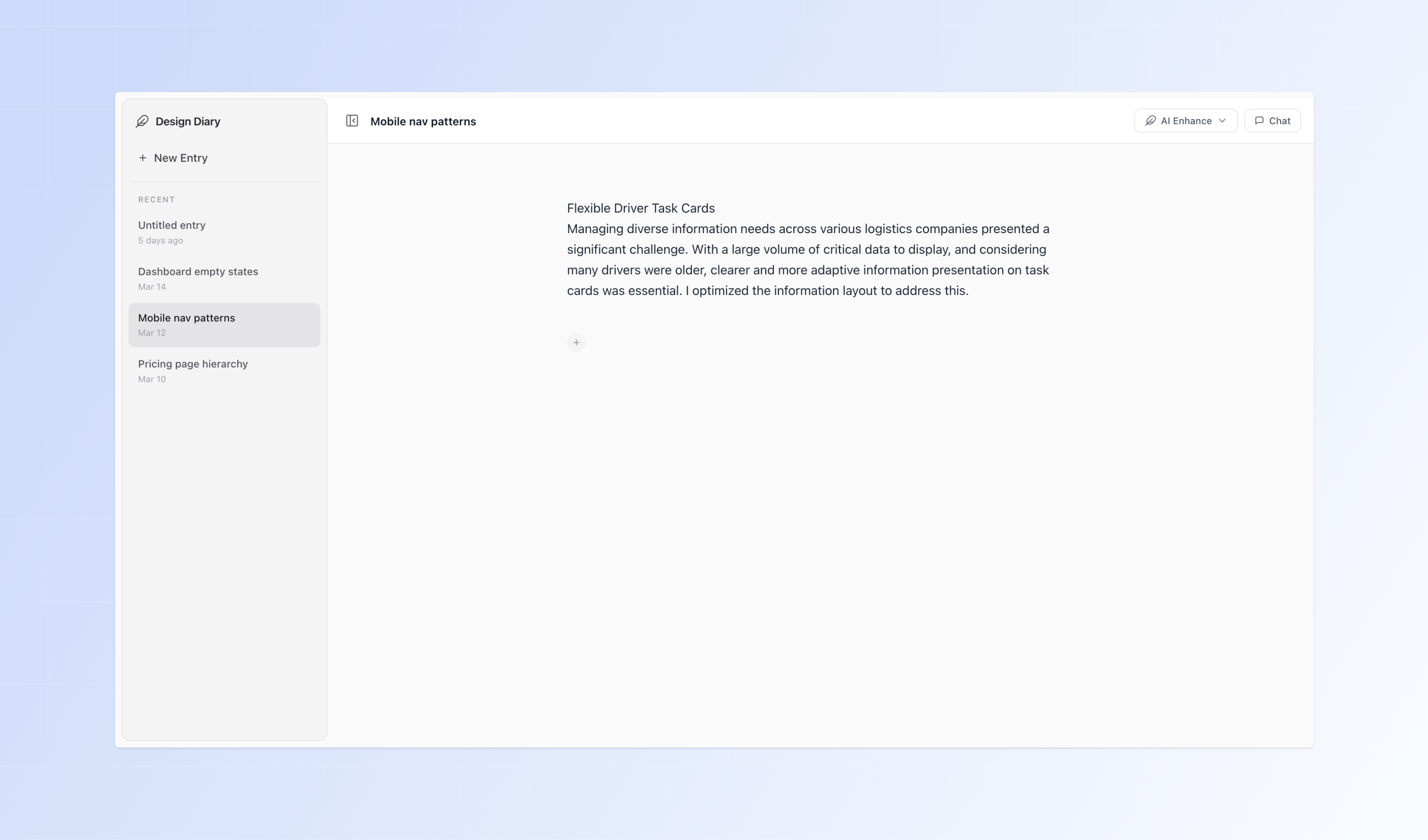
Designers think constantly. We think in Figma explorations, conversations with stakeholders and users, and iterations in our sketchbooks. When we finish and hand off our designs, that thinking starts to fade. We do take notes and write documentation, but they rarely capture the full thinking process. The rejected ideas, the pivots, and the moments something clicked are gradually forgotten.
This becomes a problem when we are writing case studies or explaining design rationale to others after some time has passed. The thinking is vague and only the artifacts remain.
I talked to three other designers and they had the same experience. The pain was that we could only piece together fragments, and it hurt because we knew there was more to the story. So I decided to design a tool that lets us record every moment of our design thinking, with as little effort as possible.
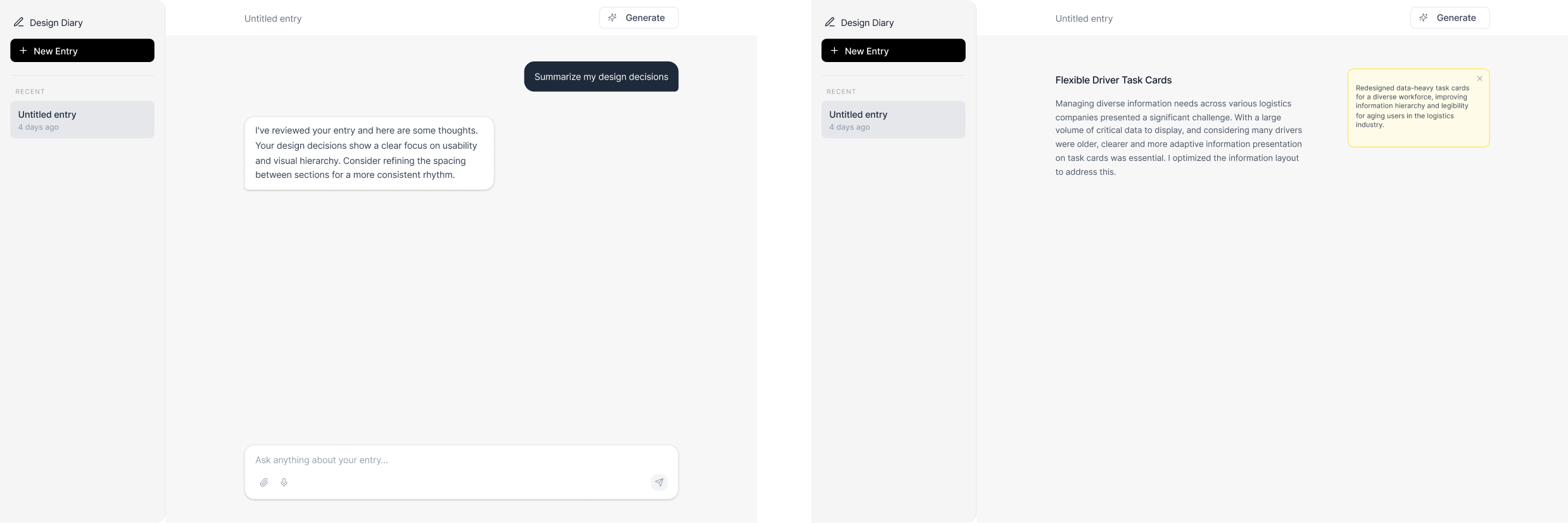
I started with the idea of an AI chat that lets you input your design work and thoughts. The AI would process it, remember it, and give feedback. I tested it with participants and they all felt it was unnatural. The issue was the mental model. Designers don't think in chat. They think visually, in fragments. The back-and-forth conversation felt wrong for the scenario of jotting down thoughts.So I shifted to the scratchbook idea. The idea was a notebook that lets users capture their thoughts freely. The AI would automatically annotate the content you added. The idea was to show that the AI was actively reading and understanding your content, so you could trust its output later. It worked technically, but it felt like being watched. When I tested this with participants, I got two key pieces of feedback.
One participant said he was worried the AI was interpreting his notes incorrectly. He could see the annotations, but had no way to correct the AI's understanding when it was wrong.
Another participant said she wanted to write freely first, jotting down what she was sure about, and only then involve the AI. The automatic annotations interrupted that flow. Every time she added something, the AI reacted. The scratchbook started to feel like it was being graded in real time, rather than a notebook she owned.
These iterations led to the final design.
Design Diary uses a linear, scrollable doc format. A linear layout is easier to organize by time. You can scroll through your thinking chronologically, like reading back through a notebook. It also feels familiar because most designers already work in text-based tools for writing and notes.
The content is split into blocks because designers capture different types of content: a paragraph of text, a Figma frame, an image, a quick note. Each block handles one type. You drop in what you have, in whatever order it comes. The goal was to let users input content without thinking about layout or structure.
When I was studying AI products, I noticed the ones users trusted had something in common. They only surfaced output when the user was ready, and always showed exactly what they worked from. That became the model for AI Enhance.
With the Enhance feature, users can forget about formatting, structure, and narrative flow. The AI handles all of that. You just need to jot down your raw thoughts. When you click Enhance, the AI reads your entire doc and surfaces suggestions based only on what you wrote. It never brings in outside knowledge or assumptions.
I also iterated on how the AI shows suggestions. The first version used Google Doc tracked changes with red strikethrough and green additions. Participants said it felt like a teacher correcting an answer. So I switched to pencil-mark styling with muted warm underlines, hover to accept or dismiss. It feels more tangible, more like writing in a notebook.
While refining how suggestions appeared, I also expanded what users could enhance. At first, the AI only worked on the whole doc. After testing with participants, I found that people also wanted to enhance specific sections. So I added block selection mode. You select the blocks you want, and the AI refines only those blocks while still considering the full context of the document.
While refining how suggestions appeared, I also expanded what users could enhance. At first, the AI only worked on the whole doc. After testing with participants, I found that people also wanted to enhance specific sections. So I added block selection mode. You select the blocks you want, and the AI refines only those blocks while still considering the full context of the document.
While testing with participants, I also found that it is important to let users be part of the AI's decision process. So I designed sticky notes. When the AI has a genuine clarifying question it cannot answer from your content alone, it surfaces a sticky note in the margin. It never assumes a gap is a mistake. It asks first. This lets users guide the AI's suggestion output, building trust between the user and the AI.
To make the AI feel alive, I also worked on the micro-interactions for loading states. While the AI processes, the Enhance button changes to "Drafting..." and the Feather icon floats and tilts. Content blocks breathe with a slow pulse. When the response arrives, suggestions reveal word by word.
After deploying, I tested the product with participants and got 20 pieces of feedback. A few things stood out. The sticky note multi-select was not discoverable. Users did not know they could choose more than one option. The keyboard shortcut for block selection was appreciated, but users needed guidance to find it. Several users also wanted to drag blocks to reorder them, which the app did not support. They figured out cut and paste as a workaround on their own.Some feedback was particularly interesting. One user suggested that when enhancing an image, the AI could also generate a caption for it. Another wanted the AI to have domain knowledge built in, so suggestions felt more relevant to their specific field.This project deepened how I think about AI. I spent a lot of time testing how AI responds to different inputs and figuring out how to shape its behavior to fit users' mental models. I felt like I was bridging the gap between AI and human. The more I worked with it, the more I felt that AI is not a black box or a complex technology. It is just another design material.Moving forward, I want to keep expanding this project. The bigger vision is an ambient design partner that integrates with Figma, Claude Code, and stakeholder conversations to automatically capture decisions as they happen. Design Diary is just the proof of concept. I want to keep exploring how AI can fit into and enhance how designers work every day.